
Tired of talking to AIs via a single line input space ?

Draft and read long-form text locally, then paste it into any AI chat.
No server, no install, no dependencies. Open index.html directly in
any browser.
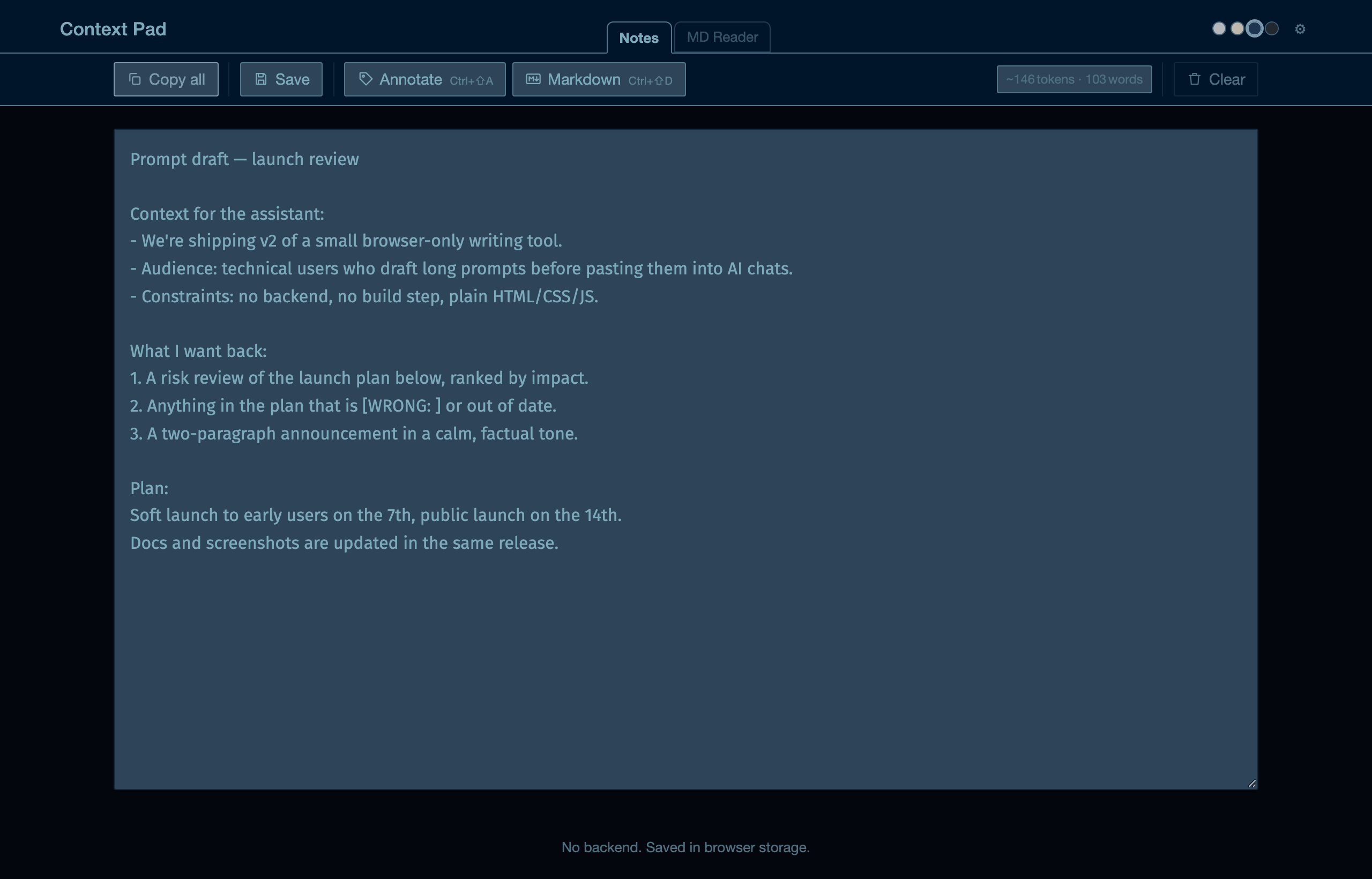
Chat inputs are built for short messages, not for drafting a system prompt, writing up a bug report, or assembling a wall of context before you paste it in. Context Pad is the scratchpad in between:
- Write in the Notes tab — a real textarea, not a one-line box.
- Check the size — live token/word count tells you if it'll fit before you paste.
- Copy all and hand it to whichever AI you're talking to.
The MD Reader tab is the other half of the loop: open a .md file — a
spec, an exported chat, a README — read it formatted, mark it up, edit
it in place, and save it back to disk, all without leaving the browser.
To run it locally, open index.html directly, or serve the folder so the
"view the README" sample link works too:
python3 -m http.server 8000


Both tabs keep their actions in a row under the tabs, so they stay visible while you scroll. Actions that can't be used yet stay visible too — clicking one tells you why (for example "Open a file first").
Where you draft. Auto-saves to browser storage as you type, so notes survive between sessions — but the point is getting text out, not storing it.
- Copy all to clipboard
- Save — save notes as a
.mdfile (File System Access API in Chrome/Edge, download fallback in Safari/Firefox) - Live token and word count so you know it'll fit before you paste
- Rendered / Source toggle — read your notes formatted (headings, tables, annotation tags) without leaving the tab; double-click the rendered view to go back to editing
- Annotate
Ctrl+Shift+A— picker that inserts an annotation tag ([EDIT: ],[WRONG: ], …) at the cursor - Markdown
Ctrl+Shift+D— picker with 14 CommonMark snippets (bold, italic, code, strikethrough, link, image, H1–H3, lists, blockquote, code block, divider); wraps selected text or inserts a placeholder - Clear — can be undone with
Ctrl/⌘+Z - Spell check via browser (toggle in Settings)
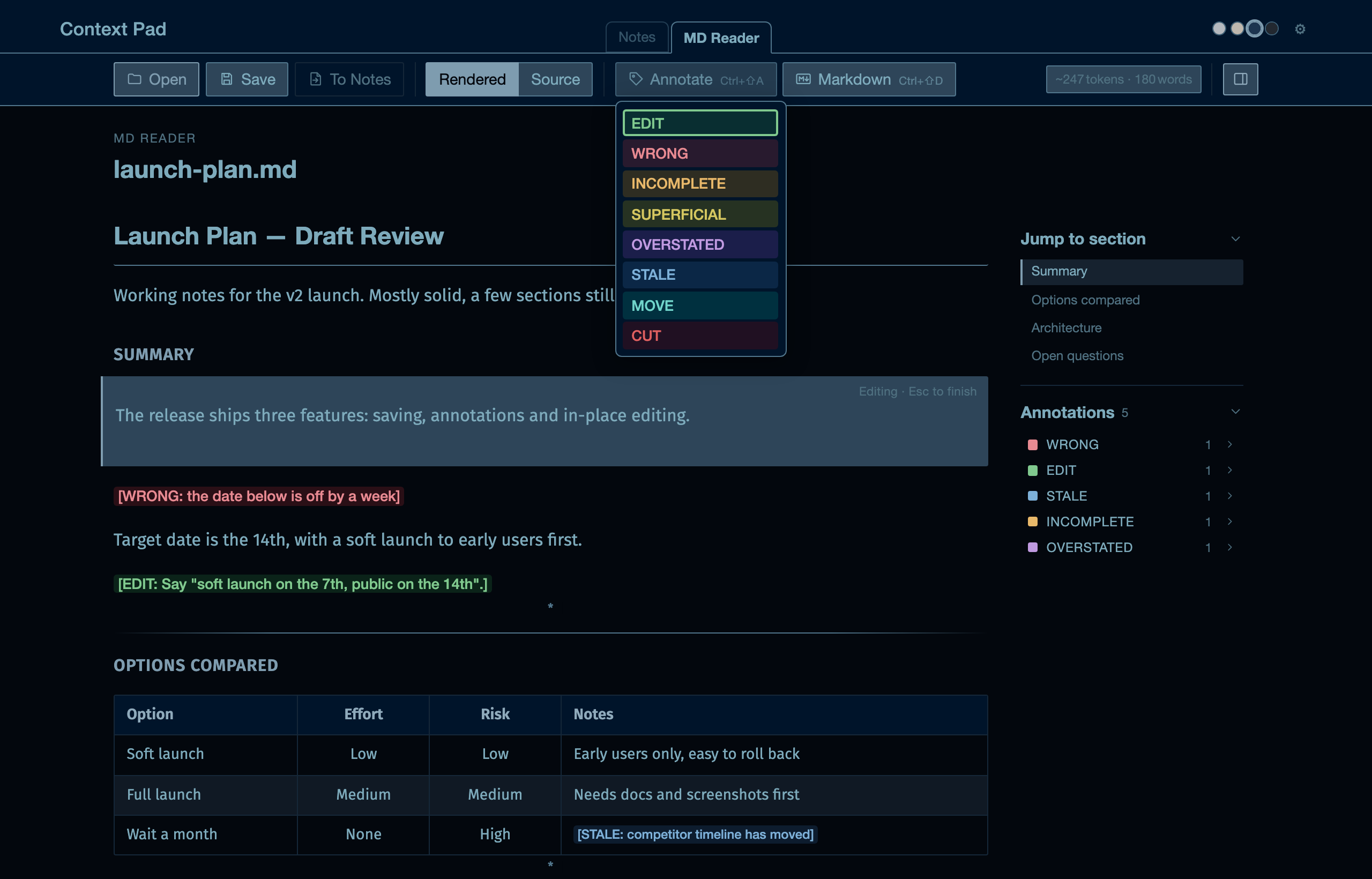
Open any local .md file and render it as formatted text — then mark
it up and edit it without leaving the tab.
- Headings, lists, bold, italic, inline code, links, images, blockquotes, fenced code blocks and tables (GitHub style, with column alignment; blank lines between rows are tolerated, as in tables pasted from AI chats)
- Two modes:
- Rendered — double-click any block (paragraph, heading, list,
table, quote, code block) to edit its Markdown right where it sits.
Esc,Ctrl/⌘+Enteror clicking away finishes the edit. Only the block you edit changes; the rest of the file is kept exactly as it was. + New block (or double-clicking empty space) adds one at the end. - Source — the whole file as plain Markdown.
- Rendered — double-click any block (paragraph, heading, list,
table, quote, code block) to edit its Markdown right where it sits.
- Annotate and Markdown pickers work in both modes
- Undo / redo —
Ctrl/⌘+ZandCtrl/⌘+Shift+Zstep through block edits; a whole Source-mode session counts as one step - Save (
Ctrl/⌘+S) writes back to disk; • modified shows unsaved changes, and the browser warns before closing with any - To Notes — copies the document into the Notes tab (added below anything already there, never overwriting it)
- Outline sidebar (toggle in the action row) with collapsible
sections:
- Jump to section — highlights the section you're reading
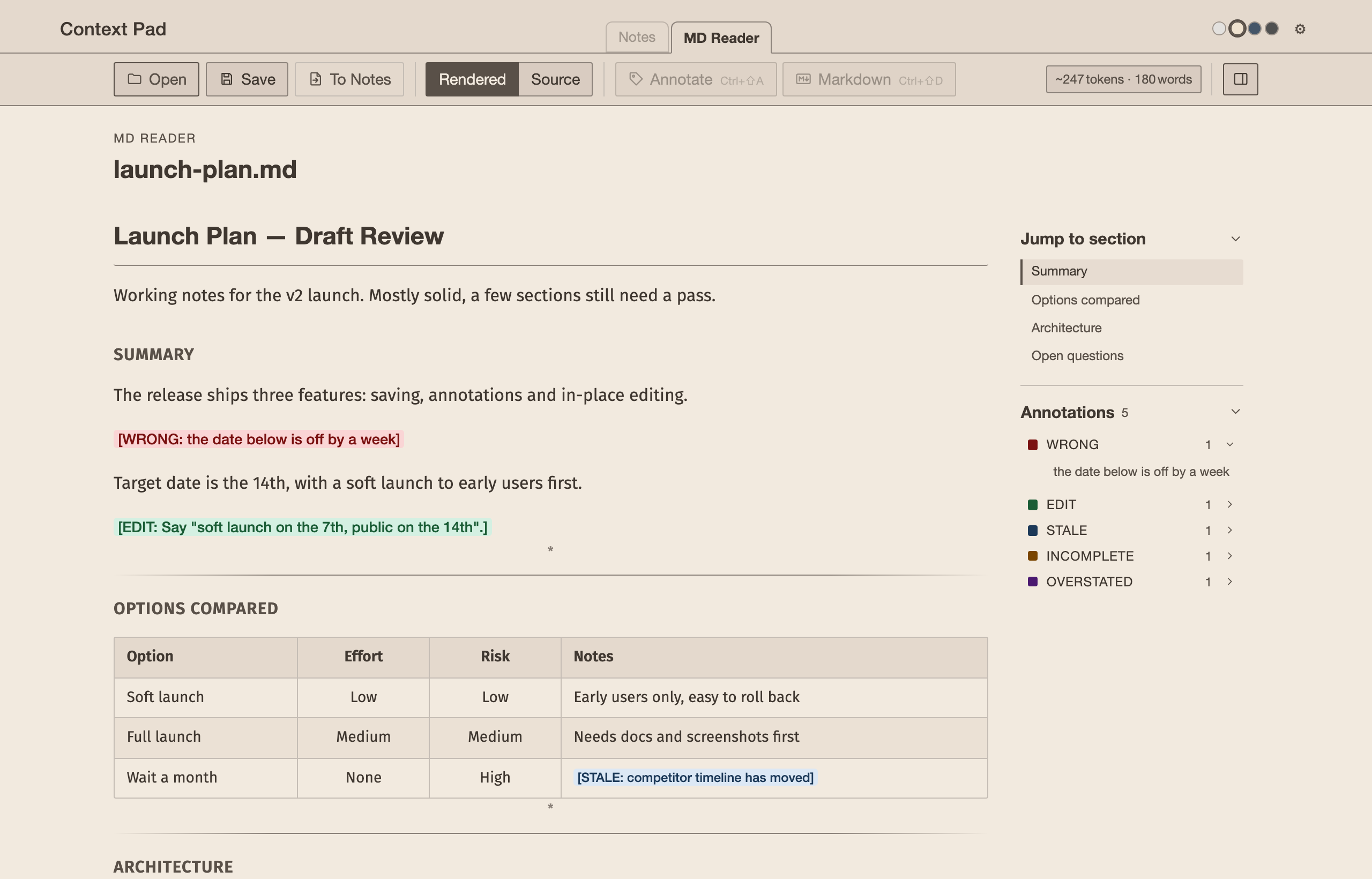
- Annotations — every tag in the document, grouped by type with a count; expand a type to see its notes and click one to jump to it
- Token and word count
- Nothing is uploaded — files are read locally via the FileReader API
Inline markers you insert into text to flag issues or changes needed.
Syntax: [TYPE: your note here] — e.g. [WRONG: timeline is off].
Default tag types: EDIT, WRONG, INCOMPLETE, SUPERFICIAL,
OVERSTATED, STALE, MOVE, CUT.
Tags are colour-coded in the MD Reader and listed in the Annotations sidebar. They are plain text, so they survive copy-paste into any AI chat or text editor.
| Shortcut | Action |
|---|---|
Ctrl+Shift+A |
Annotate picker (in Notes, Source mode, or a block being edited) |
Ctrl+Shift+D |
Markdown picker (same places) |
↑ / ↓, Enter |
Move through and pick from either picker |
Ctrl/⌘+S |
Save the current tab |
Ctrl/⌘+Z, Ctrl/⌘+Shift+Z |
Undo / redo |
Esc or Ctrl/⌘+Enter |
Finish editing a block |
On a Mac, the picker shortcuts use Ctrl, not ⌘.
Four colour themes: Light, Paper, Semi-dark (default), Dark. Each dot shows its theme's colour; the choice persists across sessions.
- Content width — slider from 400 to 1400 px controls whitespace on the sides
- Font — choose from Fira Sans (default), Source Serif 4, Alegreya, Newsreader, Montserrat, or IBM Plex Mono
- Spell check — toggle browser spell-check on the notes textarea
- Table of Contents — show/hide the outline sidebar in the MD reader
- Annotations — add or remove annotation tag types; changes take effect immediately in the picker and in the next MD Reader render
Want an AI agent to read your notes and push formatted docs into the
Reader tab directly — no copy-paste, no save-then-open? See
mcp-server/ for a small local companion server
(read_note, show_doc) you can register with Claude Code. Opt-in only —
the plain static app above works exactly the same with or without it.
Spell check in the notes pad relies on the browser and OS:
- Works well in Chrome and Edge on Windows with language set to English
- Toggling the setting in ⚙ re-applies the
spellcheckattribute, which can wake up a sluggish browser checker - If underlines are not appearing, right-click the textarea → Check Spelling (Chrome) or enable spell check in browser settings
- Grammar checking is not available without a third-party API — the browser only flags spelling
| File | Purpose |
|---|---|
index.html |
App shell, tab panels, settings dialog |
theme.css |
Colour themes and all layout styles |
app.js |
All behaviour: topbar, tabs, theme, width, notes, MD reader, settings |
README.md |
This file |
mcp-server/ |
Optional local MCP server — see mcp-server/README.md |
| Key | What it stores |
|---|---|
contextPadTheme |
Active theme name |
contextPadTab |
Last active tab |
contextPadNotes |
Notes textarea content |
contextPadWidth |
Content width preset |
contextPadSpellcheck |
Spell check on/off |
contextPadFont |
Selected font |
contextPadFontSize |
Selected font size |
contextPadTocVisible |
TOC sidebar shown/hidden in MD reader |
contextPadAnnotations |
User-configured annotation tag types |
contextPadNotesView |
Notes tab view: Source or Rendered |